Svea Checkout
Offer Svea's own checkout, with the payment methods Svea has switched on for you, to consumers and businesses in Sweden and Norway. Setup happens in the Merchant Portal, with no changes to your integration.
- Payment type
- BNPL, Installments, Card
- Customers
- Consumers and businesses
- Available in
- Sweden, Norway
- Integration
- Direct
Supports Embedded in checkout · Partial captures · Partial refunds
- Svea Checkout

Svea Checkout is Svea's own payment page, shown inside Briqpay's checkout. It offers the payment methods Svea has switched on for your account, such as invoice, card or direct bank payment.
It's a separate integration from Svea's standalone payment methods, with its own credentials and its own rules after the purchase. You can offer either or both.
What it supports
| In the Merchant Portal | Customers | Countries |
|---|---|---|
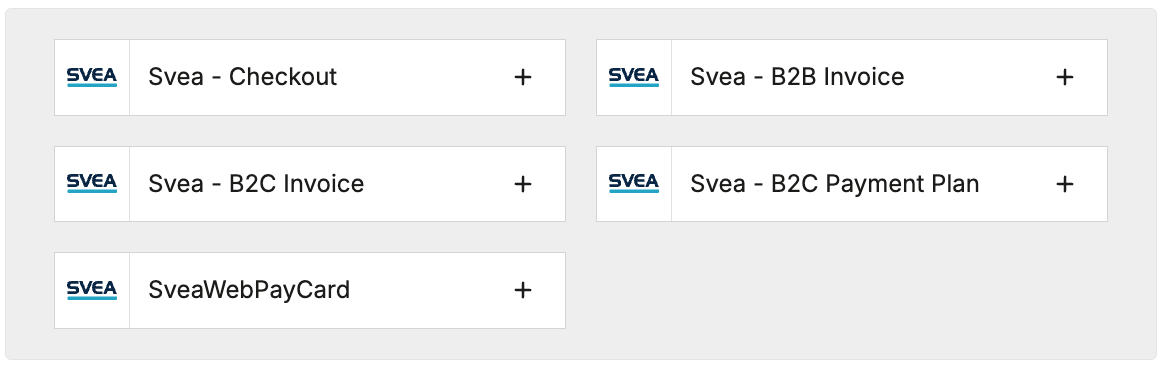
| Svea - Checkout | Consumers and businesses | Sweden, Norway |
| Capture | Refund | Cancel | Change cart after purchase | Can start as pending |
|---|---|---|---|---|
| Partial or full | Yes | Yes | No | No |
Set up Svea Checkout
1. Get your credentials from Svea
Svea doesn't have a portal where you create API keys. Svea's onboarding team sends them to you by email once your agreement is signed, usually in two emails: your merchant ID in one and your secret in the other.
If you're ready to go live but can't find your credentials, ask Svea's support at support-payments@svea.com to send them for your integration.
2. Enter them in the Merchant Portal
- Log in to the Merchant Portal as an administrator.
- Use the Test mode switch at the top right to choose whether you're setting up test or live.
- Go to Payment Methods > Configuration.
- Select General or Country Configuration, and then the country.
- Choose Svea - Checkout.
- Fill in your merchant ID and secret, and click Save.
When you save, Briqpay also signs up with Svea for updates about your orders, such as when Svea closes one. There's nothing to set up on Svea's side.
3. Show Svea Checkout in your checkout
- Go to Payment Methods > Display.
- Select the market, the customer group (B2C or B2B) and the country.
- Switch on Active for Svea - Checkout.
- For rules, such as a maximum amount per payment, click the gear icon next to it and open Rule setting.
- Drag the payment methods into the order you want them to appear in the checkout. A preview at the bottom of the page shows the result.
- Click Save.
Good to know
- Partial captures need Svea to allow partial delivery on your account. Without it, Svea rejects a partial capture. Ask Svea to enable it if you ship orders in parts.
- Some payments are captured by Svea itself, such as Swish, direct bank payments and some card payments. Capturing them through Briqpay still works: you get back the capture that already happened.
- Changing references after the purchase doesn't reach Svea. Update references updates them in Briqpay, but Svea keeps the ones from the purchase.
Help
- Questions about your Svea agreement or credentials: Svea's support, support-payments@svea.com.
- Questions about setting Svea Checkout up in Briqpay: Briqpay Support.