Zaver
Offer Zaver's invoice, installments, bank transfer, direct debit and Swish to consumers in Sweden, Germany and Austria. Setup happens in the Merchant Portal, with no changes to your integration.
- Payment type
- BNPL, Installments
- Customers
- Consumers
- Available in
- Sweden, Germany, Austria
- Integration
- Direct
Supports Hosted payment page · Partial captures · Partial refunds
- Invoice

- Installments
- Bank transfer
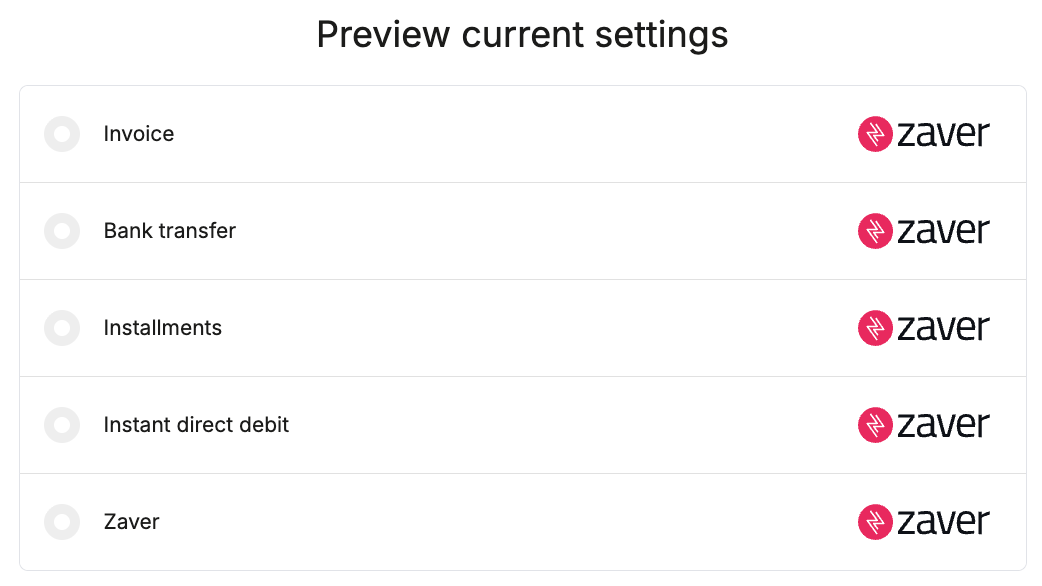
Zaver offers invoices, installments and instant bank payments. Through Briqpay you can offer each of Zaver's payment methods on its own, or Zaver's checkout with all of them in one place.
Payment methods
| Payment method | In the Merchant Portal | Customers | Countries |
|---|---|---|---|
| Zaver Checkout | Zaver - Checkout | Consumers | Sweden, Germany, Austria |
| Invoice | Zaver - Invoice | Consumers | Sweden, Germany, Austria |
| Installments | Zaver - Installments | Consumers | Sweden, Germany, Austria |
| Bank transfer | Zaver - Bank Transfer | Consumers | Sweden, Germany, Austria |
| Instant direct debit | Zaver - Instant Direct Debit | Consumers | Sweden |
| Swish | Zaver - Swish | Consumers | Sweden, Germany, Austria |
Zaver Checkout shows all the payment methods switched on for your Zaver account.
What the methods support
All Zaver payment methods work the same way after the purchase:
| Capture | Refund | Cancel | Change cart after purchase | Can start as pending |
|---|---|---|---|---|
| Partial or full, while Zaver is waiting for the capture. Once Zaver has settled the payment, only a full capture. | Full or partial, by amount | Yes | No | No |
Briqpay only creates the order once Zaver has approved the payment, so Zaver orders never start as order_pending.
Set up Zaver
1. Get your credentials from Zaver
Zaver's onboarding team or your partner manager gives you the credentials once your agreement is signed and your account is active. You need two values:
- API key
- Callback token, which Zaver uses to authenticate its notifications to Briqpay
Zaver has separate credentials for test (sandbox) and live (production). If you can't find yours, contact Zaver's merchant support at support@zaver.com or your Zaver contact.
2. Enter them in the Merchant Portal
- Log in to the Merchant Portal as an administrator.
- Use the Test mode switch at the top right to match the Zaver credentials you're entering: test or live.
- Go to Payment Methods > Configuration.
- Select General or Country Configuration, and then the country.
- Choose the Zaver payment method you want to set up.
- Paste in the API key and the Callback token, and click Save.

3. Show Zaver in your checkout
- Go to Payment Methods > Display.
- Select the market, the customer group (B2C) and the country.
- Switch on Active for each Zaver payment method you want to show.
- For rules, such as a maximum amount per payment, click the gear icon next to the payment method and open Rule setting.
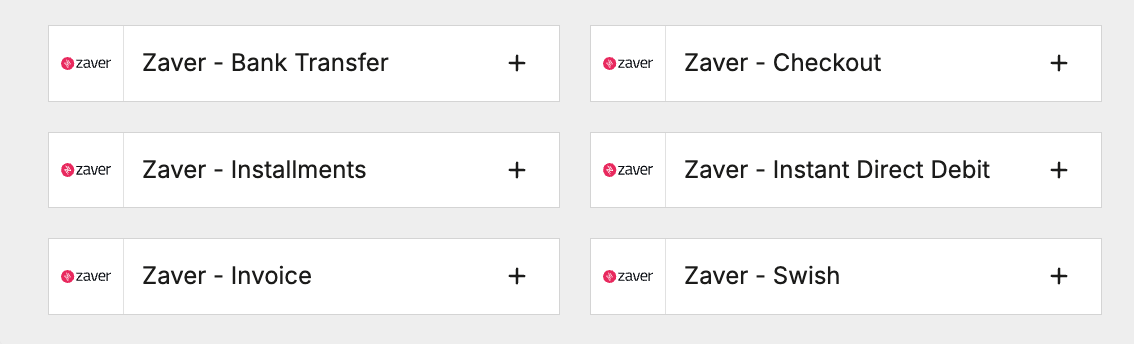
- Drag the payment methods into the order you want them to appear in the checkout. A preview at the bottom of the page shows the result.
- Click Save.
Good to know
- Your references show up in Zaver.
references.reference1becomes the payment's title and your merchant reference in Zaver, andreferences.reference2becomes its description. Set them as described in the Payment Module guide. - Changing references after the purchase doesn't reach Zaver. Update references updates them in Briqpay, but Zaver keeps the ones from the purchase.
- Refunds are by amount. Zaver refunds don't carry cart lines, so a partial refund is simply a smaller amount.
- A refund can take a moment. Briqpay approves the refund with Zaver for you, but Zaver may still be processing it. The
refund_statuswebhook tells you when it's done.
Help
- Questions about your Zaver agreement or credentials: Zaver's merchant support, support@zaver.com.
- Questions about setting Zaver up in Briqpay: Briqpay Support.